 Swift Backup

What you need
- Premium: Schedules are a Premium feature, and Premium needs a Google account. Open Account and tap Get premium.
- A place for the backups: Your phone, or a connected cloud such as Google Drive or a NAS.
- Alarms & reminders on Android 12 and later: Swift Backup asks for this permission when you turn schedules on.
Connect Google Drive or your NAS
Open Cloud sync
Tap Cloud sync at the bottom, then Connect a cloud account.
Pick a service
In Select a cloud service, pick Google Drive. For a NAS, pick WebDAV, SMB or SFTP. Tap Connect service.
Sign in
Google Drive uses the Google account you signed in to Swift Backup with.
For a NAS, enter the server address, the Path, your username and password. Swift Backup can also scan your local network for servers.
Test and connect
For a NAS, tap Test, then Connect service.
The WebDAV provider list has presets such as Nextcloud and Synology. A Synology NAS needs an existing folder in the Path field. Common issues has the details.
Turn on schedules
Open Schedules
Tap Schedules at the bottom and turn on Scheduled backups.
Allow alarms
On Android 12 and later, allow Alarms & reminders for Swift Backup when Android asks.
Set the start time
Tap Start time and pick when your schedules run. The default is 3:00 AM. It applies to every schedule.
Add a battery rule
Tap Battery requirements and pick None, Only when charging or a minimum battery level.
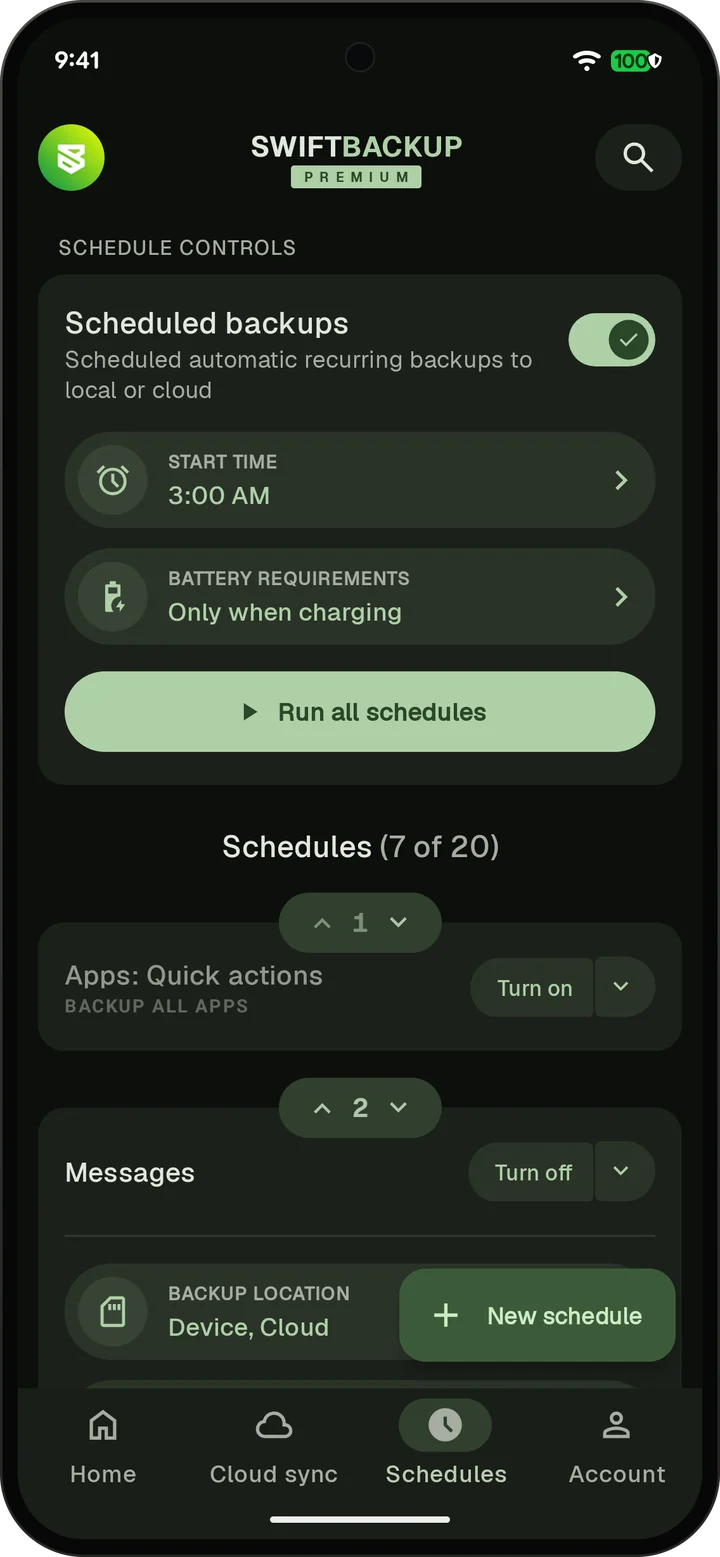
Create a schedule
Tap New schedule
Pick what to back up: Apps, Messages, Call Logs, Folders, Wallpapers or Wi-Fi networks. For apps, choose Quick actions, App Labels or Configs.
Pick the days
Tap Repeat and choose the days the schedule runs.
Pick what it saves
For apps, set the quick actions, Allowed apps and App parts. App data needs root.
Pick where it saves
Tap Backup location and pick Device, Cloud or both. For the cloud, Sync options sets whether uploads use Wi-Fi only or mobile data too.
Try it
Open the schedule's menu and tap Run schedule now. Run all schedules at the top runs every schedule.
- Wi-Fi schedules need root, or Shizuku on Android 11 and later.
- Configs need root or Shizuku.
- On Android 17 and later, scheduled backups can't include encrypted RCS chats without root or Shizuku.
Check that schedules run
- Each schedule shows its Last run. If a run was blocked or an upload was skipped, it says why, such as no network or no cloud connected.
- With root, automation apps such as Tasker or MacroDroid can start your schedules. The FAQ has the commands.