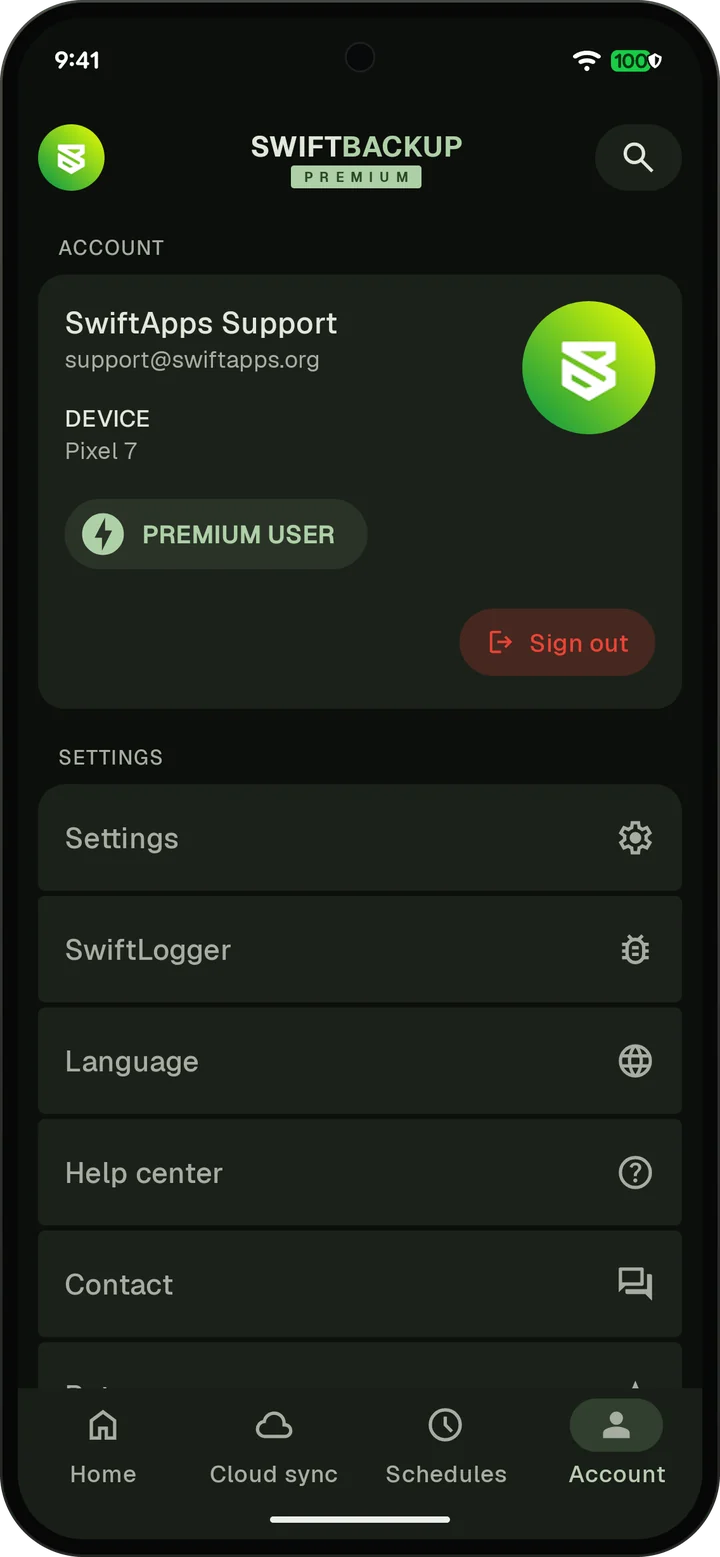
Swift Backup
On your phone
No account or internet needed.
- Internal storageThe SwiftBackup folder
- SD card
- USB drive
Save backups on your phone, an SD card, Google Drive or your own server. Restore them when you switch phones. Root is optional.
500K+ installsAndroid 8.0 and laterNo ads16 languages
How it works
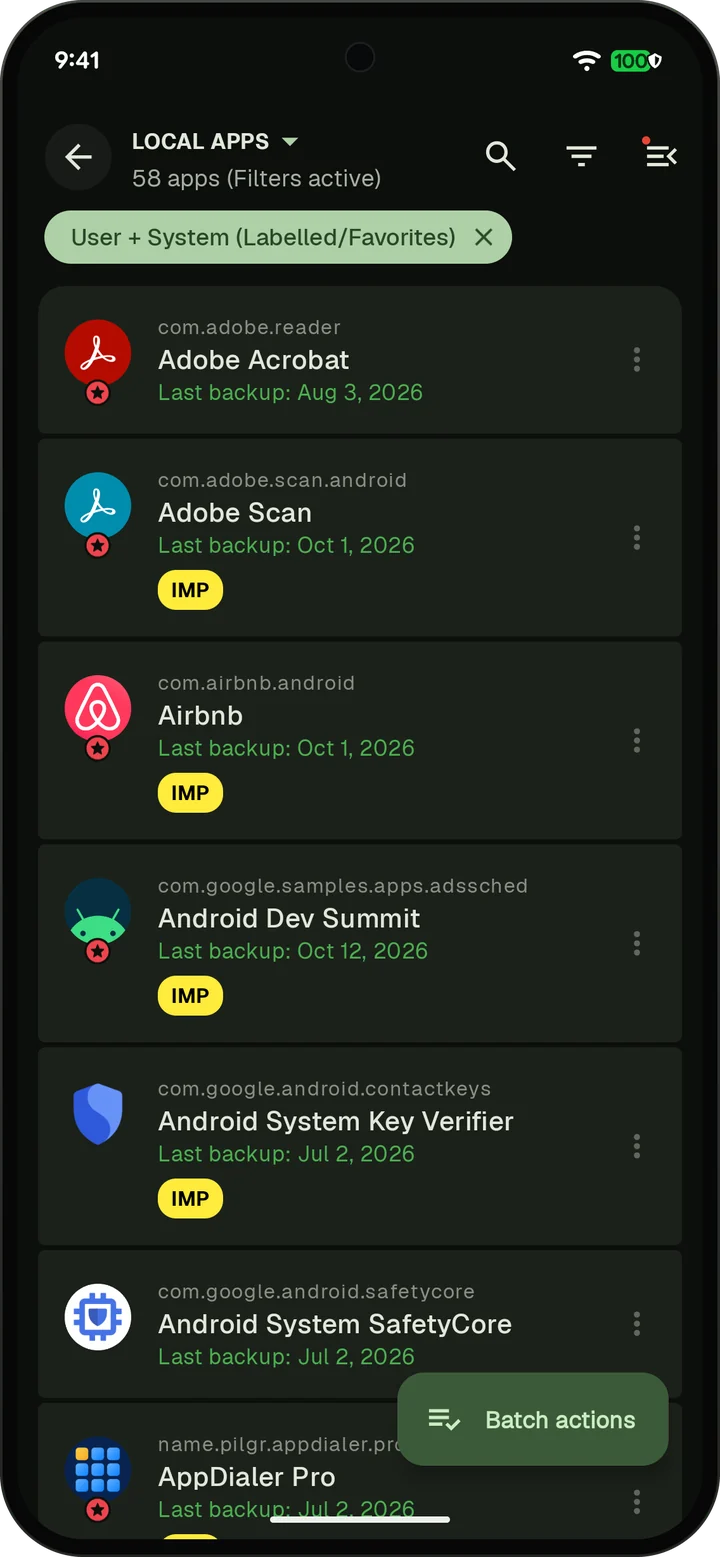
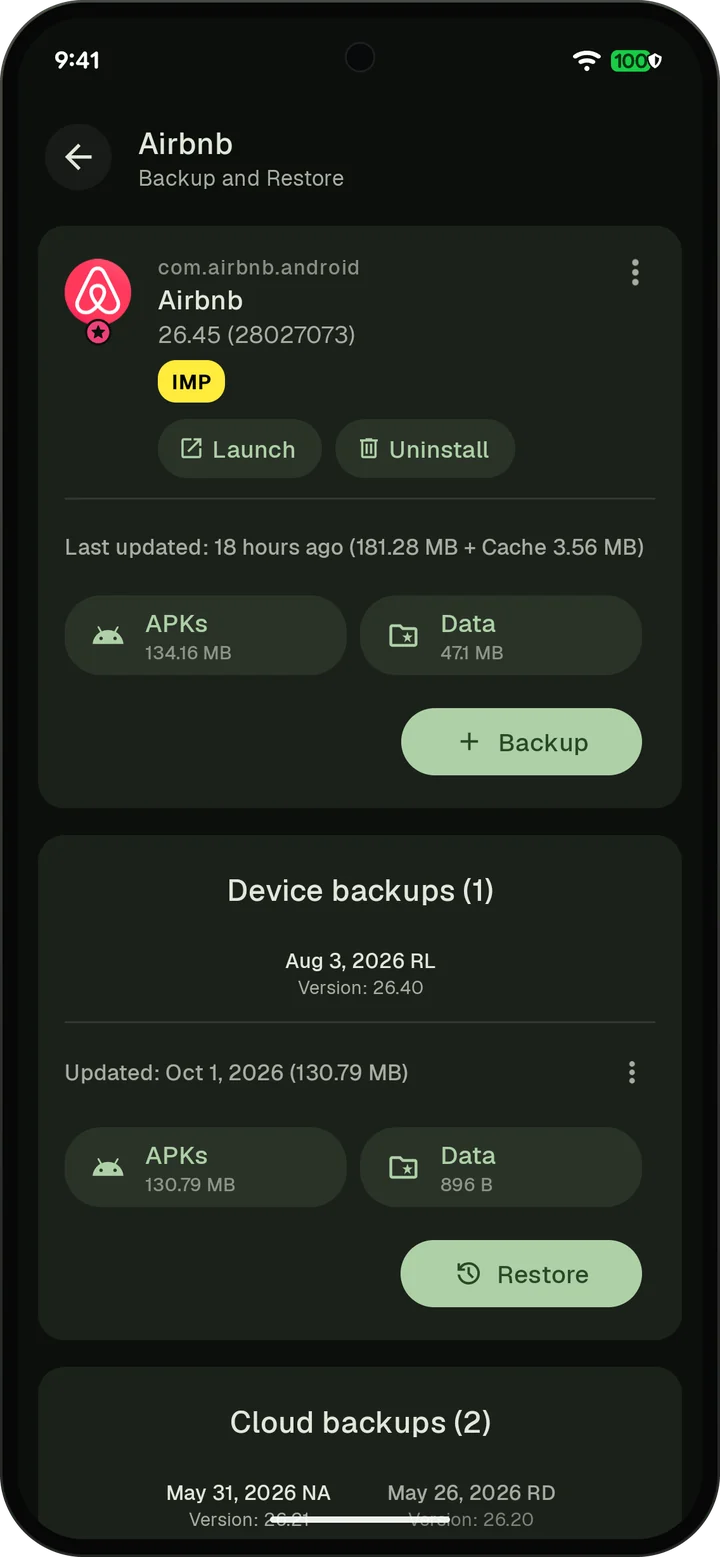
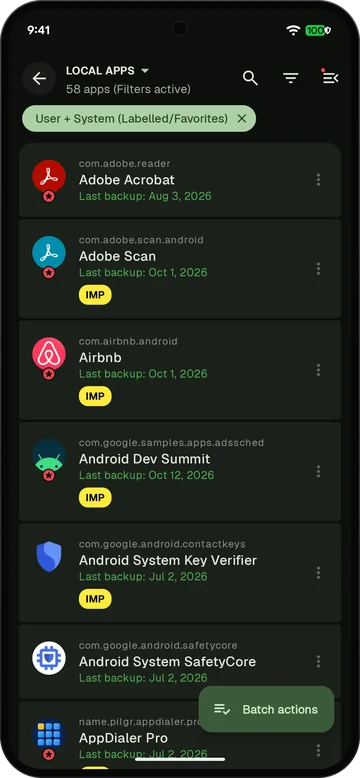
See every installed app with the date of its last backup. Back up one, a few or all of them.
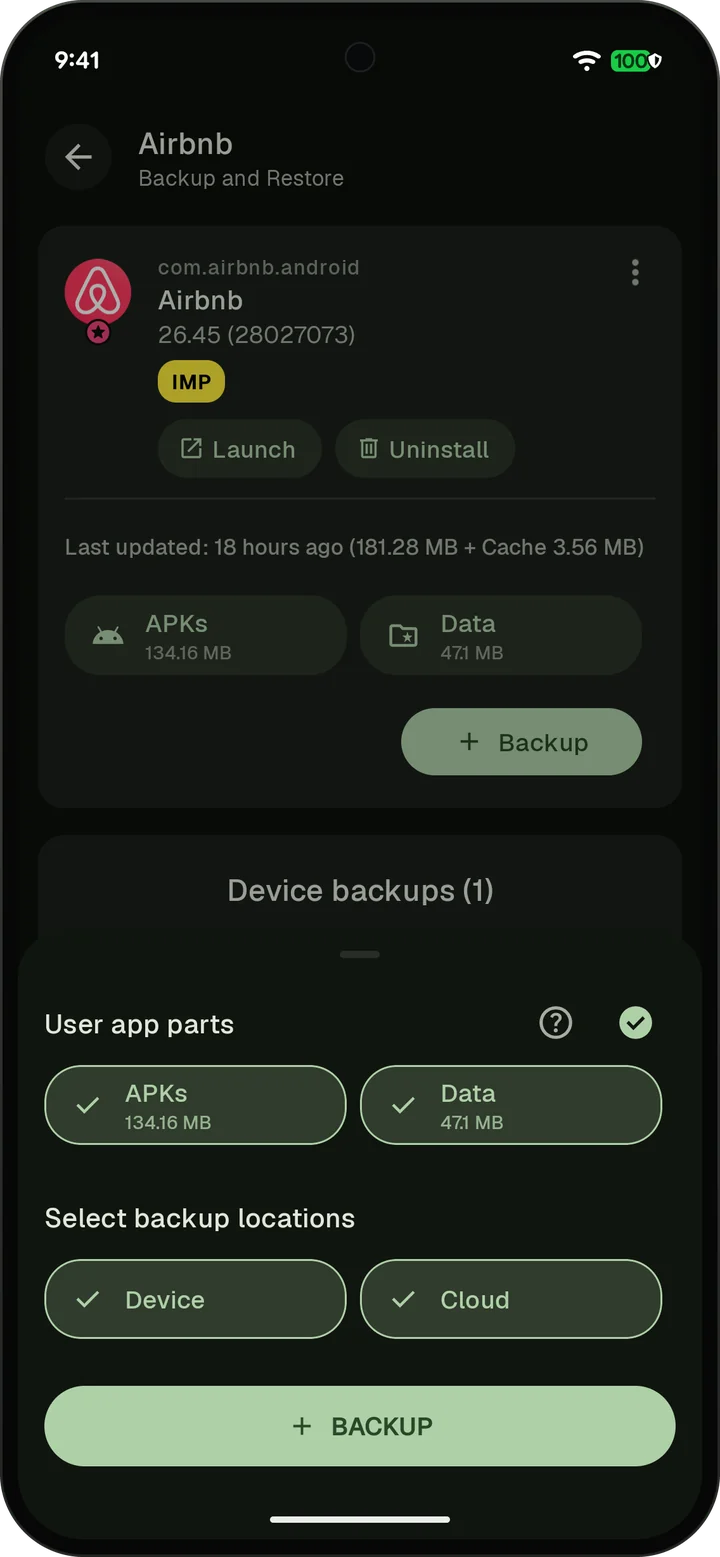
APKs back up without root. With root, app data comes along too. Save to your phone, the cloud or both.
Cloud backups of apps come with Premium.
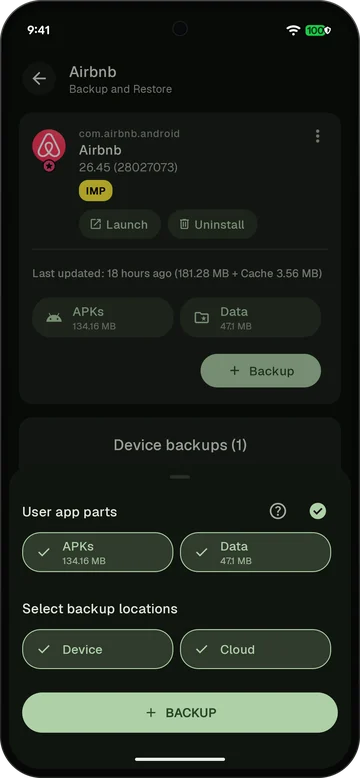
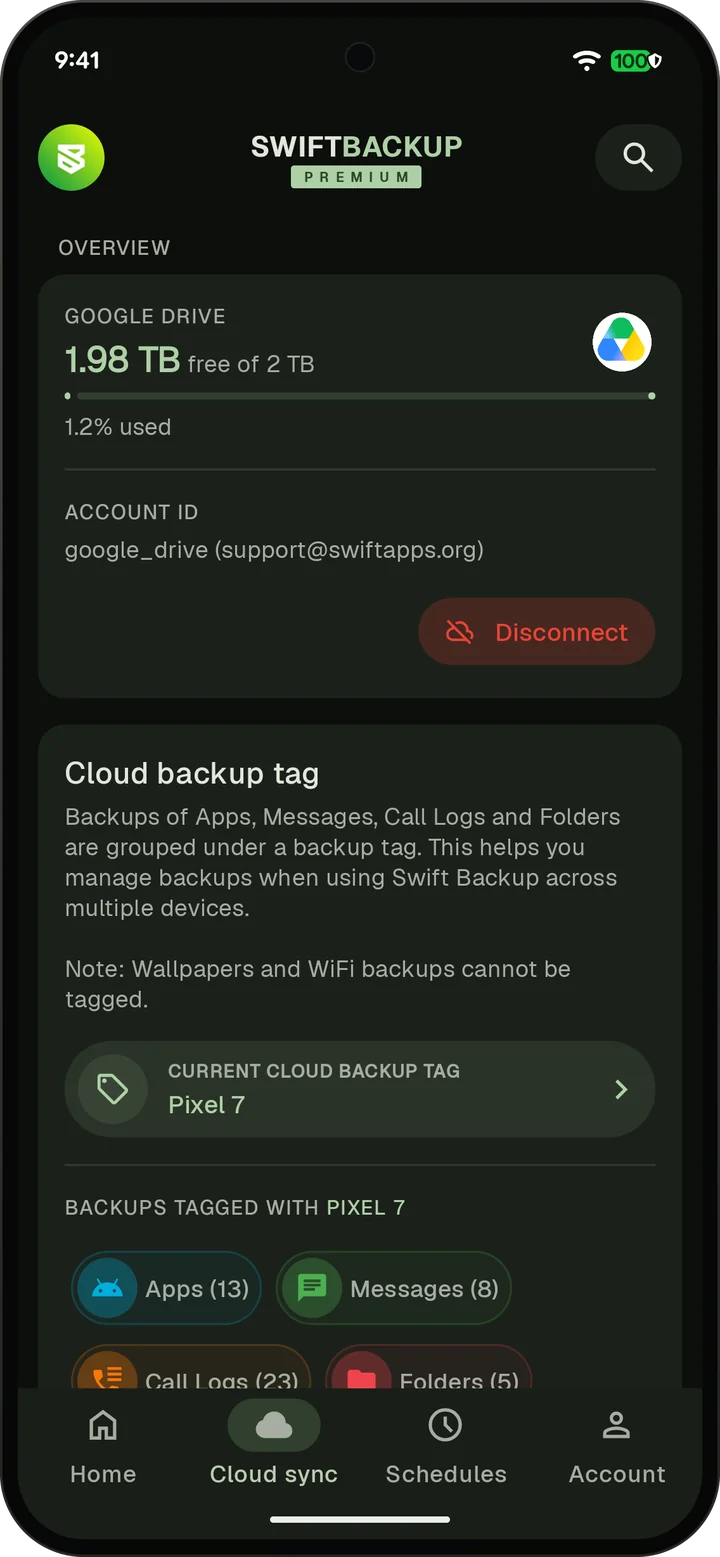
Google Drive, OneDrive, Dropbox and seven more. Or your own WebDAV, SMB, SFTP or S3 storage.
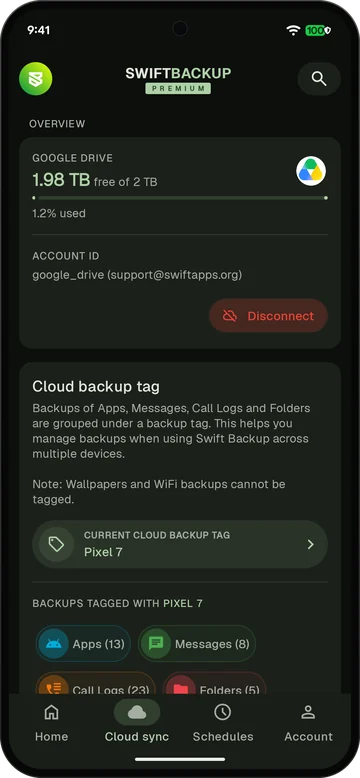
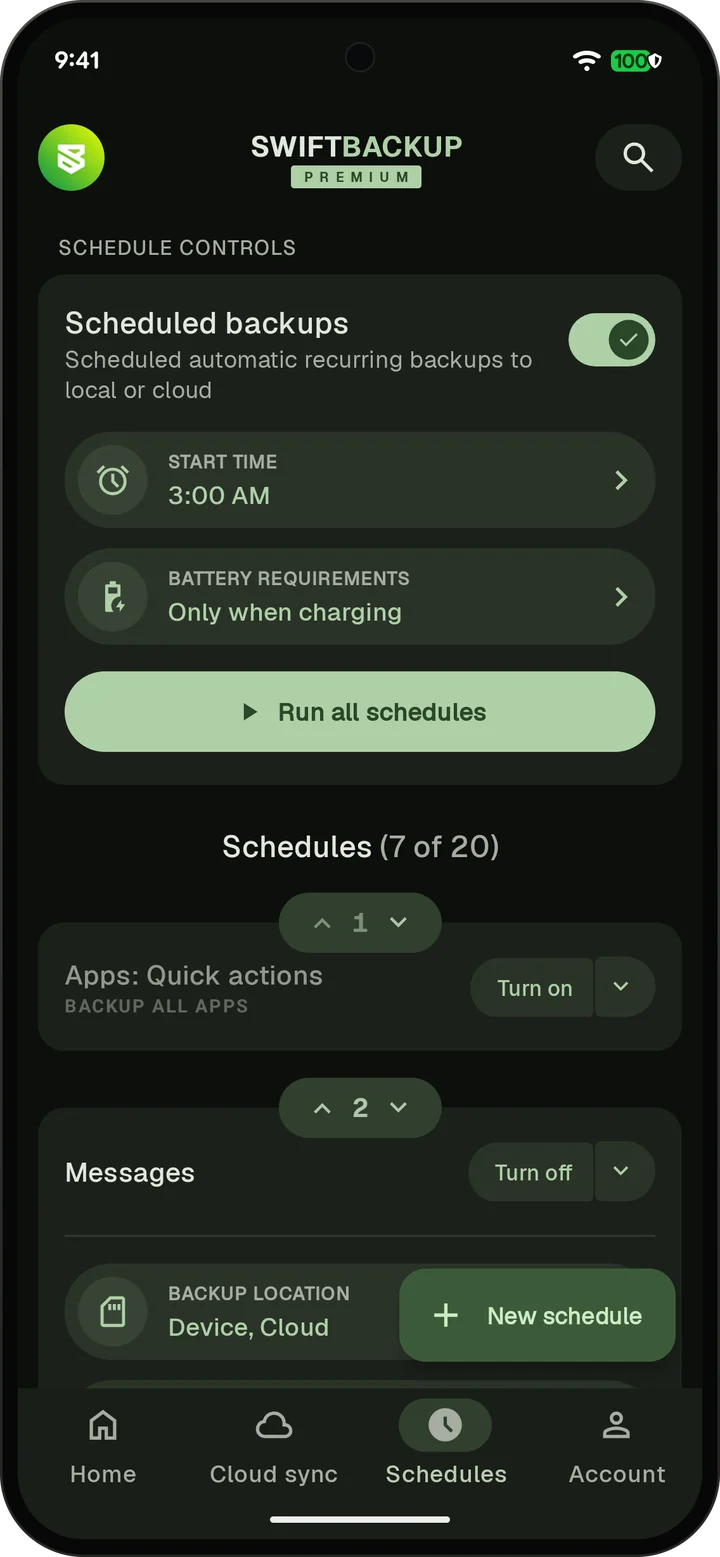
Premium schedules back up apps, messages and more on the days you choose, at a set time.
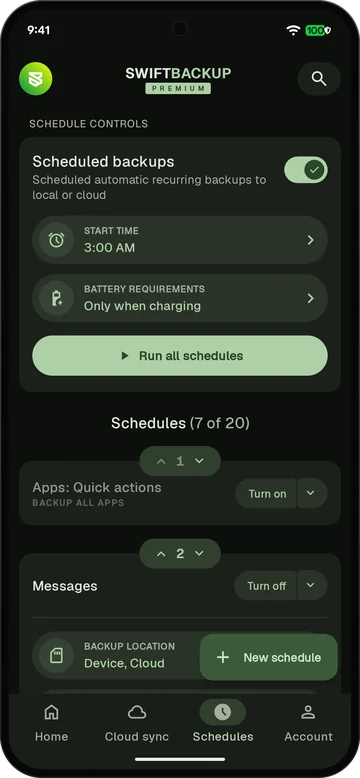
Sign in with the same account on your new phone and restore from your device or the cloud.
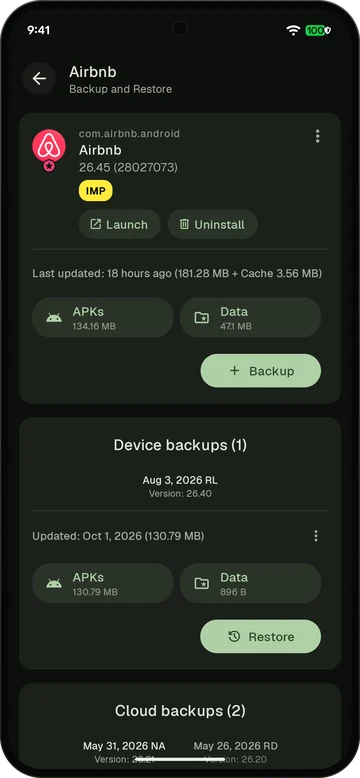
Root and Shizuku
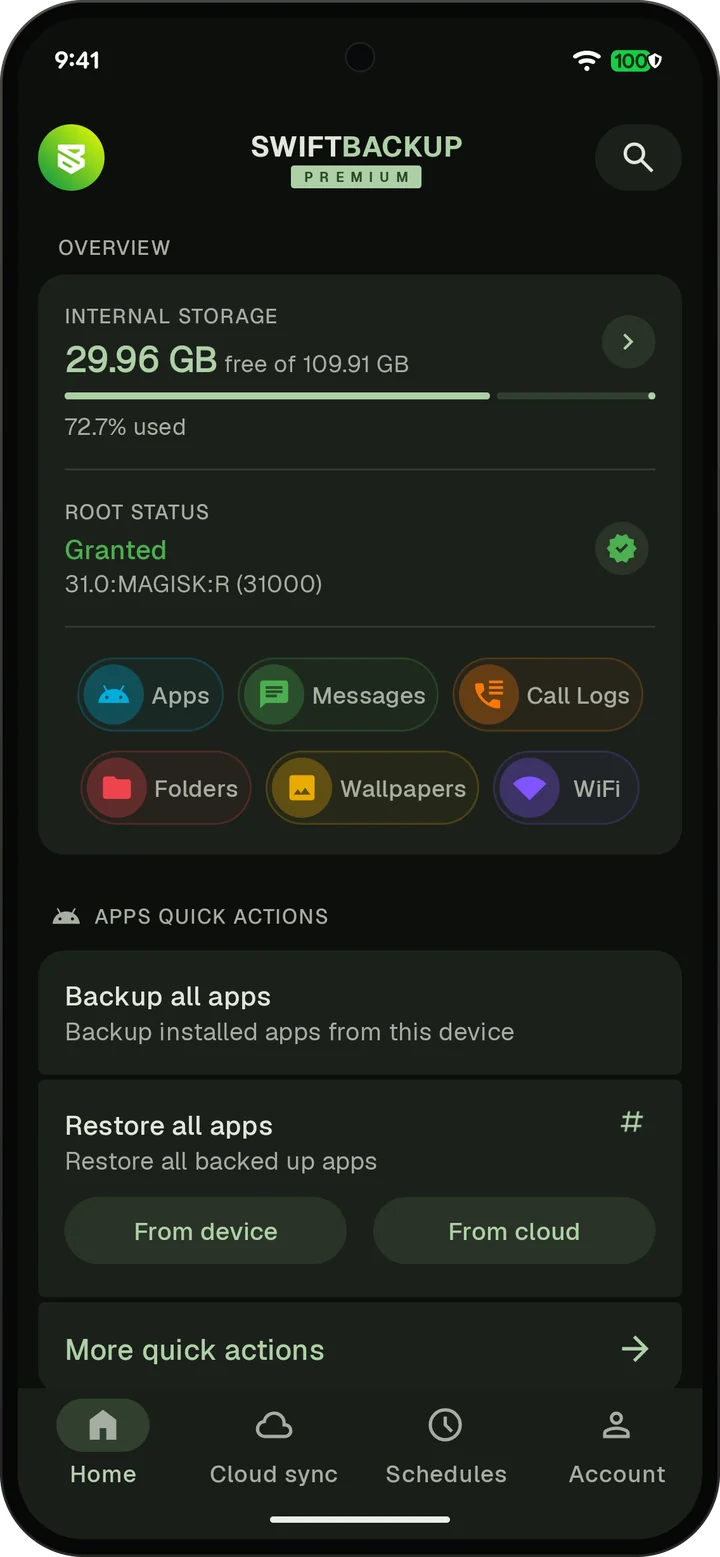
Most backups need nothing extra. Shizuku adds batch restores and more without rooting. Root unlocks app data.
| Backup | Without root | With Shizuku | With root |
|---|---|---|---|
| Apps | |||
| APKsIncluding split APKs | Yes | Yes | Yes |
| Restore many apps at once | One at a time | Yes | Yes |
| App data | No | No | Yes |
| External data and OBBExpansion files and data outside the app | Up to Android 10 | Yes | Yes |
| Permissions and app settingsNotification, accessibility and battery settings. SSAID needs root. | No | Yes | Yes |
| MessagesSMS, MMS and RCS | Yes | Yes | Yes |
| Call logs | Yes | Yes | Yes |
| Folders | Yes | Yes | Yes |
| Wallpapers | Yes | Yes | Yes |
| Wi-Fi networksShizuku on Android 11 and later | No | Yes | Yes |
Storage
Keep them on your phone, in the cloud drive you already use or on a server you run.
No account or internet needed.
Connect the drive you already use. Backups are tagged by device.
 Google Drive
 OneDrive
 Dropbox
 MEGA
 Filen
 Drime
 Box
 pCloud
 Yandex Disk
 Cloud Mail.Ru
Back up to a NAS, a home server or object storage.
 WebDAV
 SMB
 SFTP
 FTP and FTPS
 S3-compatible
Ready-made setups for
 Nextcloud
 ownCloud
 Synology
 WD My Cloud
 Koofr
 Seafile
 HiDrive
 Amazon S3
 Cloudflare R2
 MEGA S4
 Backblaze B2
 DigitalOcean Spaces
 Wasabi
 Hetzner
 OVHcloud
 Scaleway
 IDrive e2
 Storj
Encryption
Your backups are encrypted on your phone before they're saved or uploaded. App data, messages, call logs and folders use AEGIS-256. APKs, expansion files and wallpapers are not encrypted.
Add your own password to app, message and call log backups. It stays on your device.