 Swift Backup

The short answer
Android phones can back up to your Google account from the Settings app. Google's help pages call this Backup by Google One. It saves apps and app data, call history, contacts, device settings, and SMS and MMS messages. You restore it while you set up a new phone or after a reset.
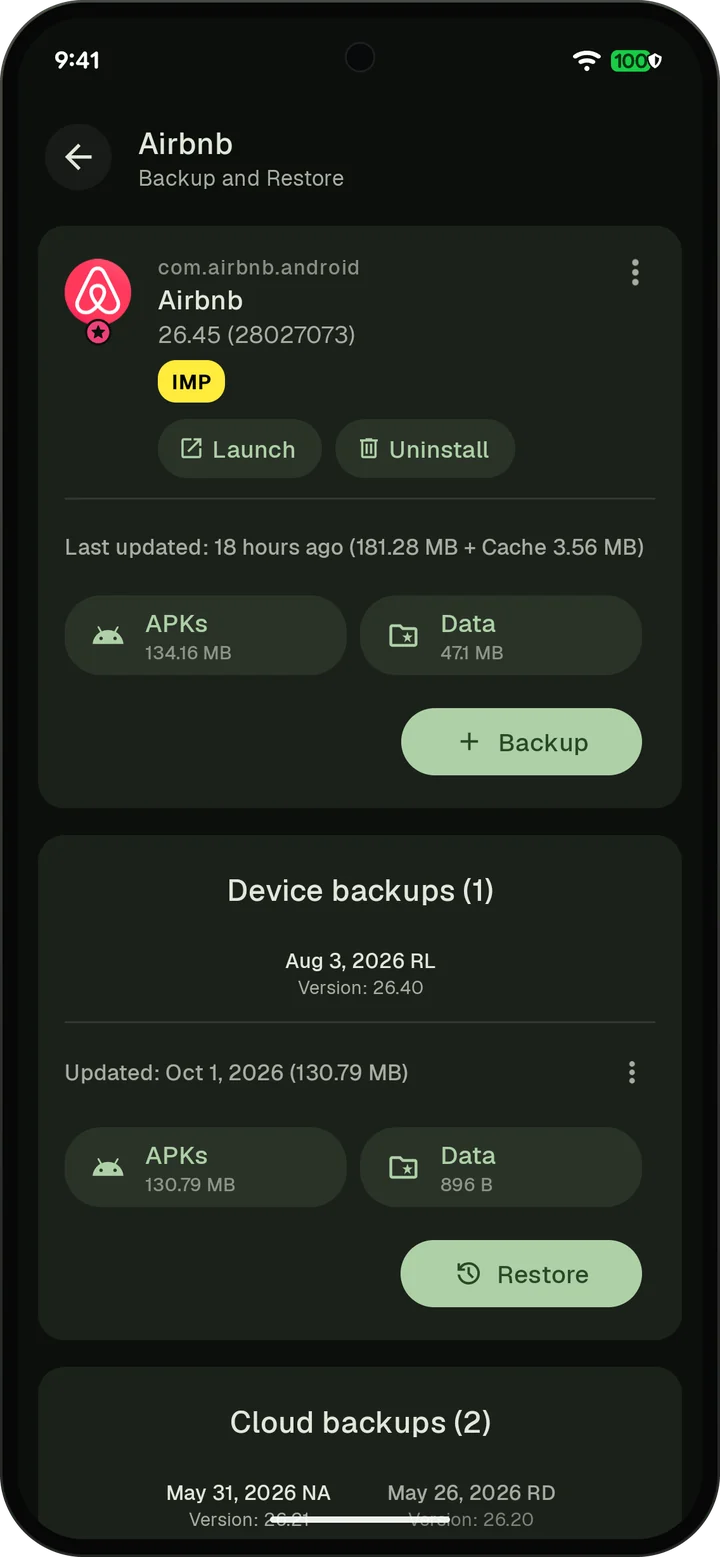
Keep it on. It needs no root, and it costs nothing within your Google storage. Swift Backup adds what Google's backup doesn't do: Backups on storage you choose, older versions of each app, and app restores any time.
We make Swift Backup, so read this with that in mind. Every fact about Google's backup on this page comes from Google's own help pages and developer docs, listed at the end and read on 14 November 2026.
Side by side
| Swift Backup | Google One backup | |
|---|---|---|
| What it backs up | Apps with split APKs, app data, messages, call logs, Wi-Fi networks, wallpapers and folders | Apps and app data, call history, contacts, device settings, and SMS and MMS messages. Photos and videos with Google Photos. |
| Root needed | App data needs root. Batch restores need root or Shizuku. | No |
| App data | With root, each app's private data, even from apps that opt out of Android backup. The app cache only if you turn it on. | Only from apps that allow backup, up to 25 MB each. Cache and no-backup folders are always left out. |
| Account | Optional. Cloud backups and Premium need a Google account. | A Google account |
| Where backups go | Your phone, an SD card, a USB drive, 10 cloud drives, S3, WebDAV, SMB, SFTP and FTP | Your Google account. Backups count toward your Google storage. |
| Encryption | App data, messages, call logs and folders use AEGIS-256. Wi-Fi backups are encrypted too. APKs, expansion files and wallpapers are not. | Encrypted in transit. Some data is also encrypted with your screen lock PIN, pattern or password. Photos, videos and MMS media are not. |
| Restore | Any time, from the app. Without root, apps restore one at a time through Android's installer. | Mostly while you set up a phone. App data, settings and messages restore only then. |
| Cost | Local backups are free. Premium is a one-time Lifetime purchase or a yearly subscription. | Free within your Google storage. Each account includes up to 15 GB, shared with Gmail, Drive and Photos. More needs a Google One plan. |
| Status | Maintained. Current version: 5.1.1. Works on Android 8.0 and later. | Maintained by Google. Needs Android 8 or higher. |
When Google's backup is the better pick
- It's in your Settings. Turn it on in your phone's Settings app, under Google.
- It restores during setup. Sign in on a new phone or after a reset and follow the steps to bring your data back.
- It includes app data and needs no root. Apps that take part come back with their data. Swift Backup needs root for app data.
- It covers contacts and device settings. Swift Backup doesn't back up contacts or device settings.
Where Google's backup stops
- Apps decide what it gets. Apps take part by default, but an app can switch off Android backup in its manifest (allowBackup). Google's backup then skips that app's data entirely.
- Apps can leave files out. An app can list the files and folders to include or exclude. Its cache, code cache and no-backup folders are always left out.
- 25 MB per app. When an app's data is larger, Android doesn't back it up to the cloud until it's back under the limit. For app data, only the latest backup is kept.
- App data, settings and messages restore only while you set up a phone. To restore them later, you reset the phone.
- If you don't use a phone for 57 days, its backup is erased, except photos and videos.
- You can't restore a backup onto a phone with an older Android version.
Use both
Keep Google's backup on for contacts and settings. Add Swift Backup for the parts you want to control.
- Choose where backups go. Your phone, an SD card, a USB drive, cloud drives or your own server. Cloud backups of apps and folders need Premium.
- Restore any time. Restore an app whenever you want, without resetting your phone.
- Keep older backups. Free keeps your previous app backup when an app updates. Premium keeps up to 10 per app.
- Root users get more. With root, Swift Backup copies each app's private data folders, even for apps that opt out of Android backup or leave files out of it. It skips the code cache, and the app cache unless you turn on Backup app cache. Some apps still refuse restored data, as Common issues explains.
Sources
- Android Help, Back up or restore data on your Android deviceRead 14 November 2026
- Google One Help, Back up your device (Android)Read 14 November 2026
- Google One Help, How your Google storage worksRead 14 November 2026
- Android Developers, Back up user data with Auto BackupRead 14 November 2026
- Android Developers, the application element (android:allowBackup)Read 14 November 2026