 Swift Backup

What an app backup keeps
Swift Backup saves each app in parts. Pick the parts you want when you back up.
- APKs: The app itself, with its split APKs and shared libraries
- App data: The app's private files, such as its preferences and databases
- External data: The app's folder in Android/data
- Expansion files: The OBB files that some games download
- Media: The app's folder in Android/media
Each backup also saves the app's permissions and special data, such as accessibility, usage access and battery optimization. With root, it saves the app's notification settings and channels too.
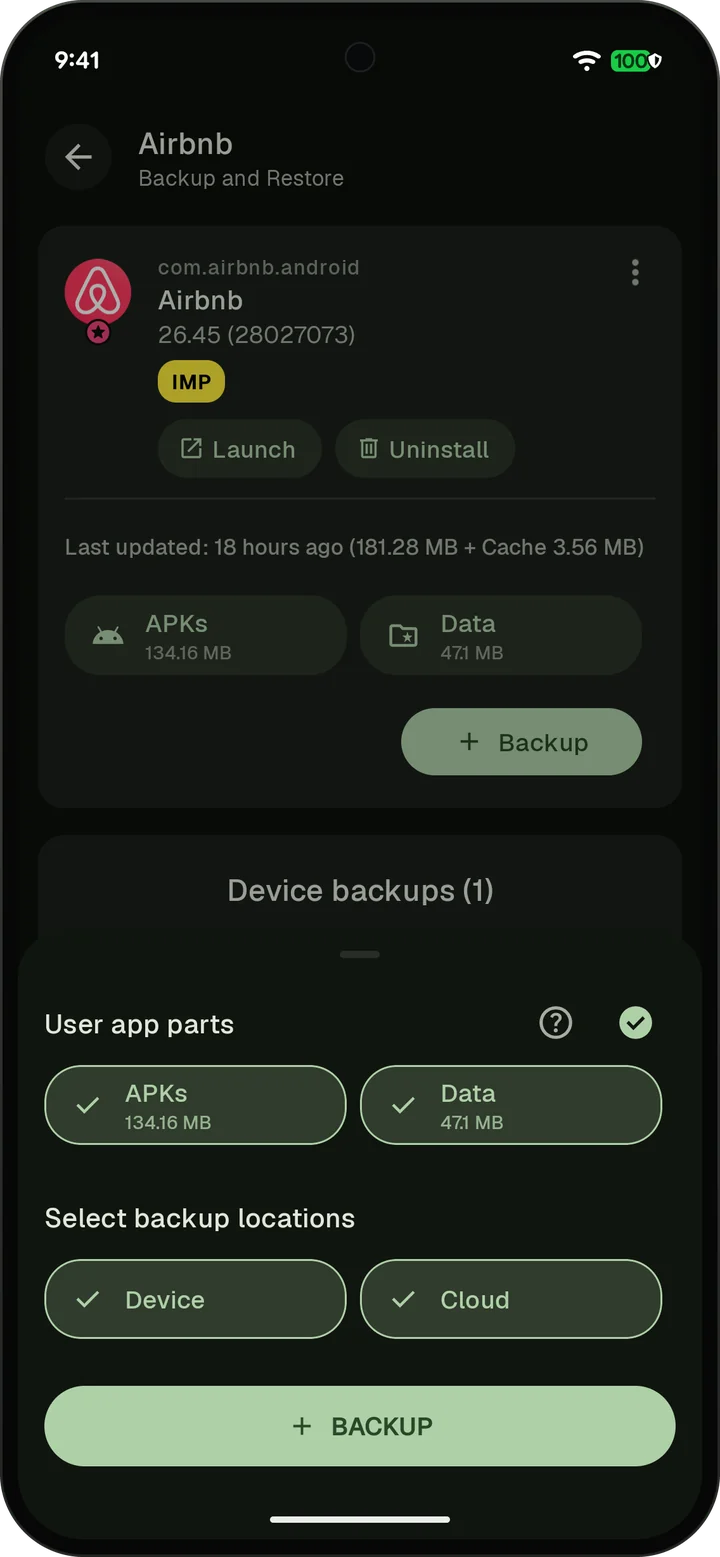
Save app backups on your phone, an SD card, a USB drive or in the cloud. Local app backups are free. Cloud backups of apps need Premium.
What each part needs
APKs and media need nothing extra. App data needs root. On Android 11 and later, external data and expansion files need root or Shizuku.
| App part | Without root | With Shizuku | With root |
|---|---|---|---|
| APKs and split APKs | Yes | Yes | Yes |
| App data | No | No | Yes |
| External data and expansion files | Up to Android 10 | Yes | Yes |
| Media | Yes | Yes | Yes |
| Restore permissions and special data | No | Not SSAID or notification settings | Yes |
The FAQ explains why app data needs root and which parts to back up. Without root, follow the guide to back up apps without root.
How a restore works
Without root: Restore apps one at a time. Android's installer asks you to confirm each app.
With root or Shizuku: Restore many apps at once, with their permissions and special data. App data comes back with root only.
With root: Restored apps can keep Google Play as their installer. Notification settings and SSAID, the Android ID each app sees, come back too.
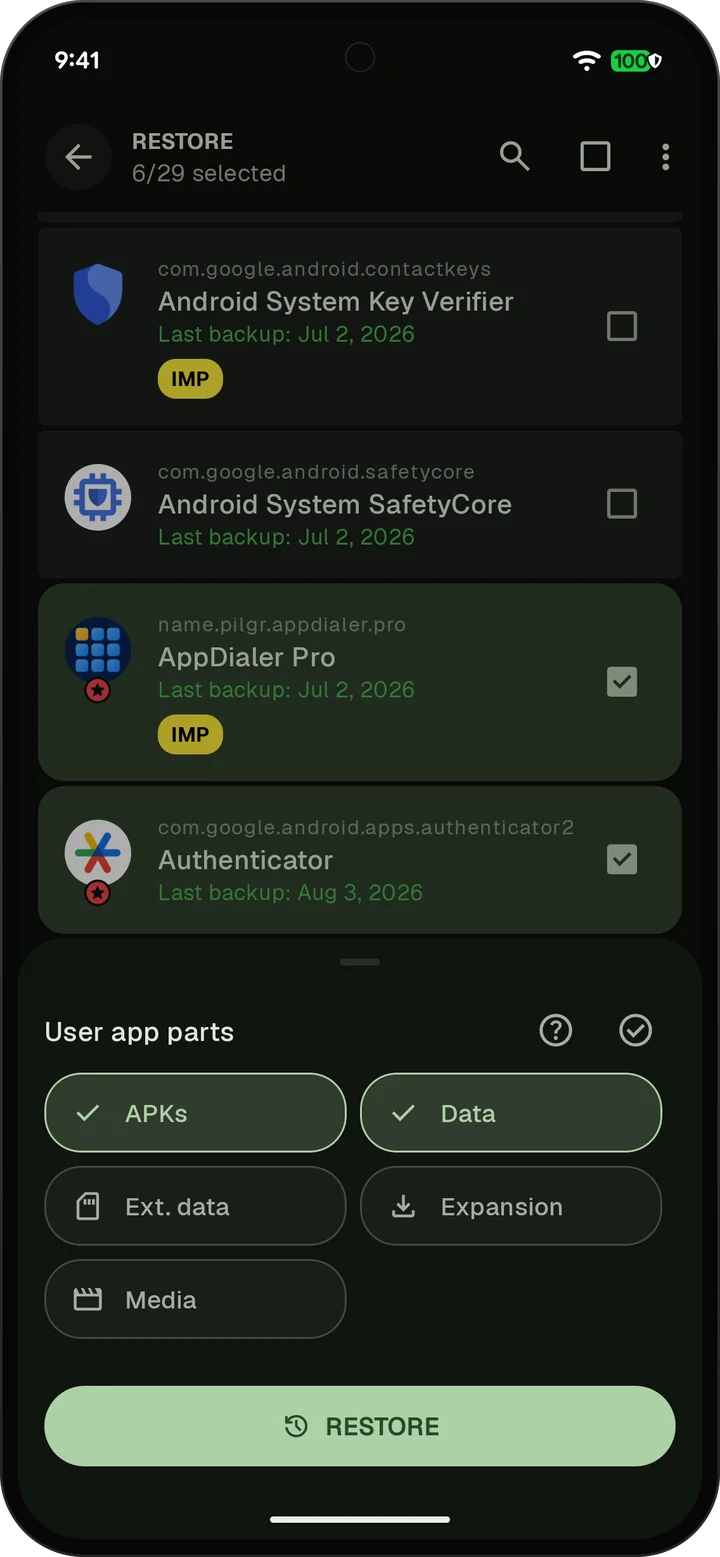
Backups are linked to your Swift Backup account. Sign in with the same account and use the latest Swift Backup to restore them. The new phone guide covers a full move.
Some apps check the phone at startup and ignore restored data. Common issues lists what to try.
Keep more than one backup
Free: Keep your previous backup when an app updates. Swift Backup makes a new backup when the APK changes and keeps the one before it.
Premium: Keep up to 10 backups per app. Make a new backup every time, or only when the APK or the app data changes.
Premium also lets you add a note of up to 500 characters to a backup and protect a backup. The backup limit never replaces or deletes a protected backup.
Share and install APK files
Share the APK of an installed app or of a backup through Android's share menu. Apps with split APKs are shared as a set.
Import APK, XAPK, APKM and APKS files to install them. With root or Shizuku, Swift Backup installs them itself. Without them, Android's installer opens.
What is encrypted
App data, external data and media are encrypted with AEGIS-256 on your phone, before they are saved or uploaded. Keys are derived with Argon2id. APKs and expansion files are not encrypted.
The Advanced password option adds your own password to app backups. It stays on your device. If you lose it, those backups can't be restored.