Swift Backup
Get it on Google Play

Help center/App configs

App configs

Use different backup and restore settings for each app label. Run a config by hand or on a schedule.

Needs PremiumNeeds root or Shizuku

  1. Introduction

    Custom app backup/restore configurations (Configs) feature provides power users the ability to set different settings for app backup/restore on a per-label basis. For eg. You may want to skip data backup for apps labelled with 'NO DATA' or upload to cloud only the backups of apps labelled with 'CLOUD ONLY'.

    Below are the tips and a step by step guide for making the best use of configs.
  2. Step 1

    Add appropriate labels to your apps for use in configs

    Create some labels by going into Apps > Tap the drawer icon at top > App labels.

    Set the labels to the apps from the apps list by clicking the 3-dot icon for the app > Set app labels.

    Important tips
    • Don't set multiple labels to an app
    • This ensures that an app matches only one custom settings in a config.
    • Choose label names so that it is easy to know what custom settings you want to use for that label
    • Example 1: Use 'NO DATA' label for apps that you wish to skip data backup for.
    • Example 2: Use 'CLOUD ONLY' label for apps that you want to keep backups for only in cloud.
  3. Step 2

    Create a config and add custom settings for the labels

    Create a config by going into Apps > Tap the drawer icon at the top > Custom configurations (Configs).

    Add custom settings for each label you created in Step 1.

    Save the config.

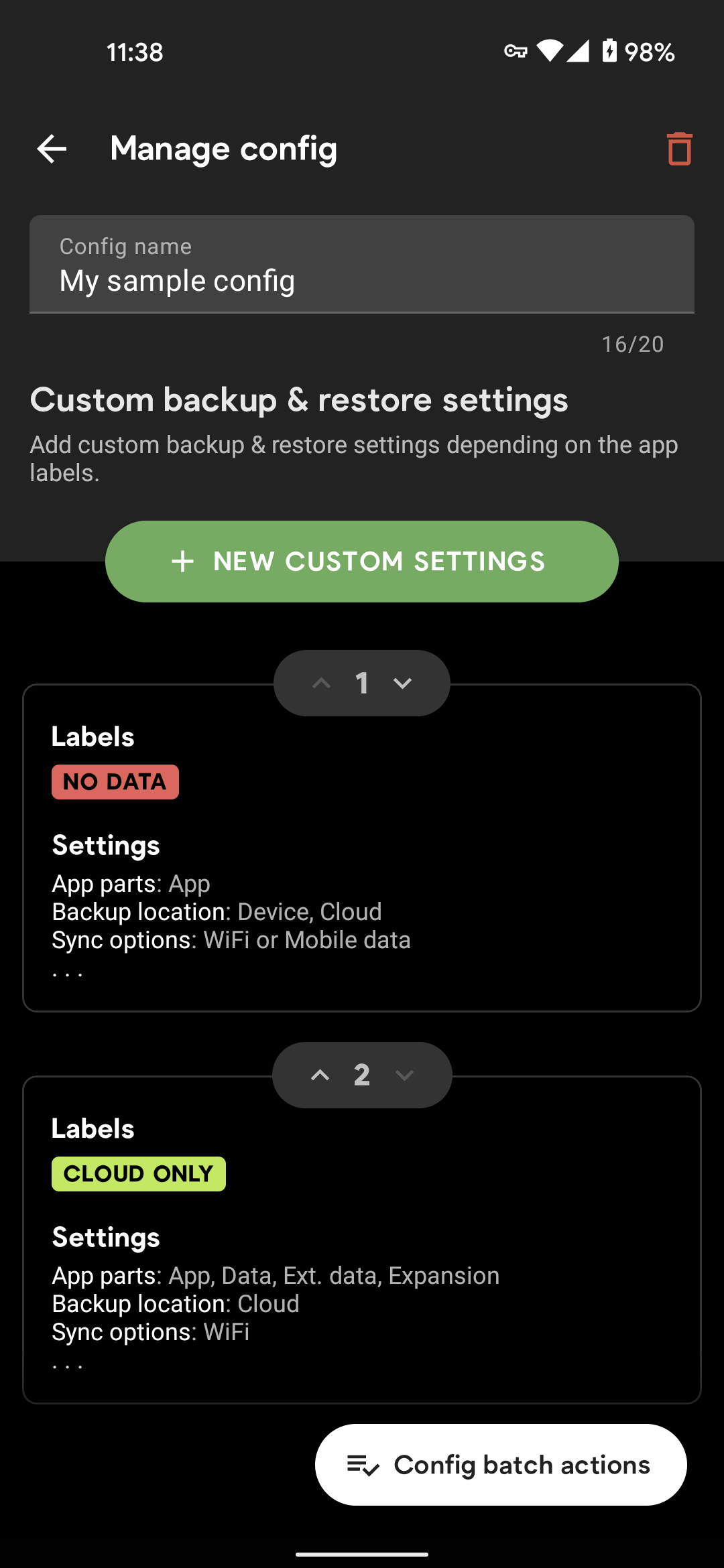
    Screenshot showing custom backup configuration settings

    In the example screenshot above, we created a sample config and added two custom settings for the two labels we previously mentioned.

    • Custom setting 1 applies to apps labelled with 'NO DATA' with data parts not selected for backup.
    • Custom setting 2 applies to apps labelled with 'CLOUD ONLY' with backup location set to only 'Cloud'.
  4. Step 3

    Perform Backup/Restore using your config

    You can backup & restore using the config by using the batch actions button at the bottom in the concerned config's screen.

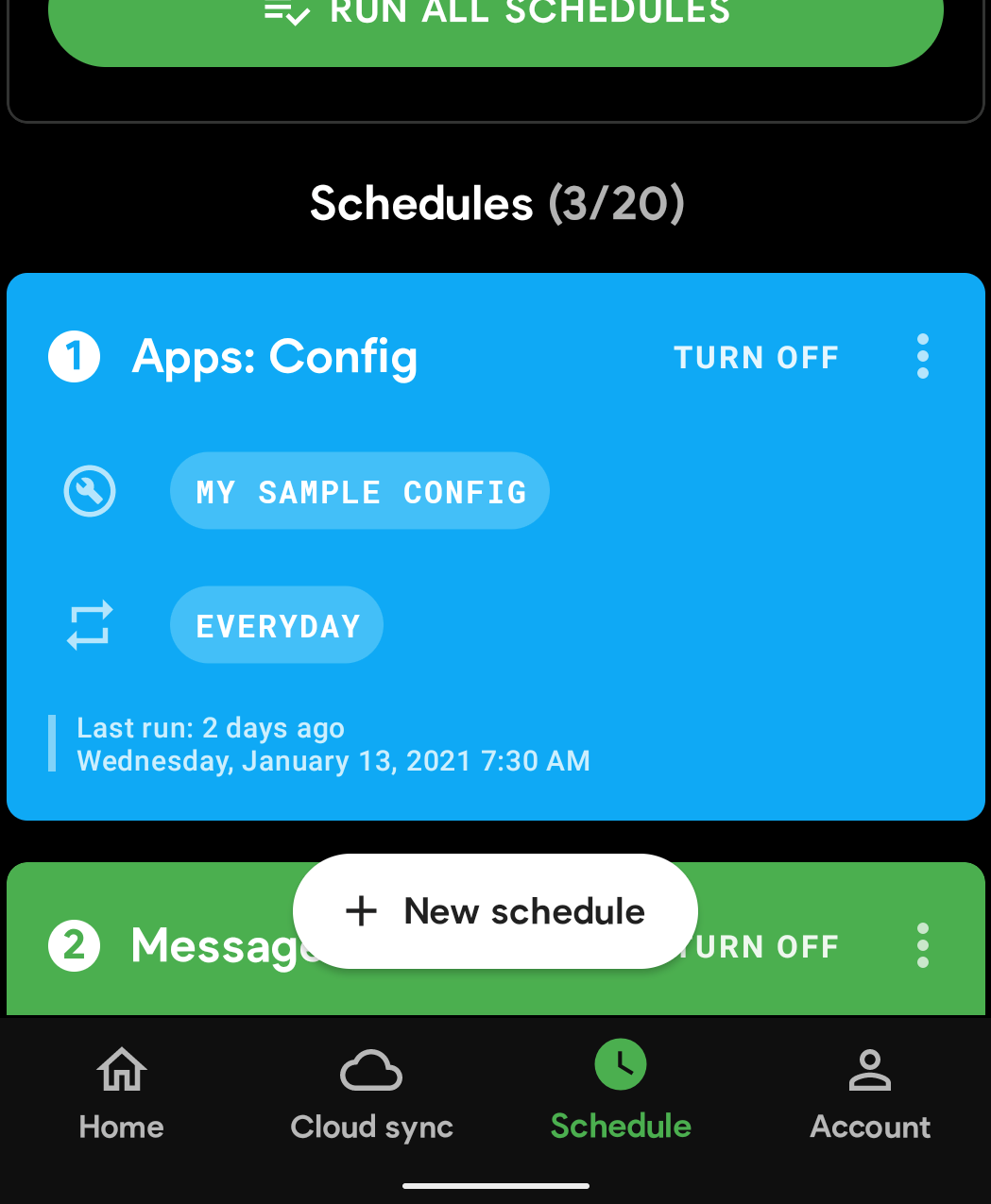
    You can also add the config to your scheduled backups as seen in the below screen:

    Screenshot showing schedules screen with config backup schedule
  5. Rules for config execution

    An app backup/restore is executed only once in a config even if the app has multiple labels that match multiple custom settings within a config. So make sure you follow the tips we shared above in Step 1.

    If an app matches labels in multiple custom settings, the first setting it matches in the config will be used for backup/restore.

    For eg. If you've added both 'NO DATA' and 'CLOUD ONLY' label to one of your apps the backup/restore will be executed using the custom settings for 'NO DATA' since it appears before custom settings for 'CLOUD ONLY'.