 Swift Backup

How schedules work
Schedules come with Premium. Set one start time for your schedules and pick the weekdays each schedule runs.
Battery rule: Run only while charging, or only when the battery level is at least the level you set. You can also leave it off.
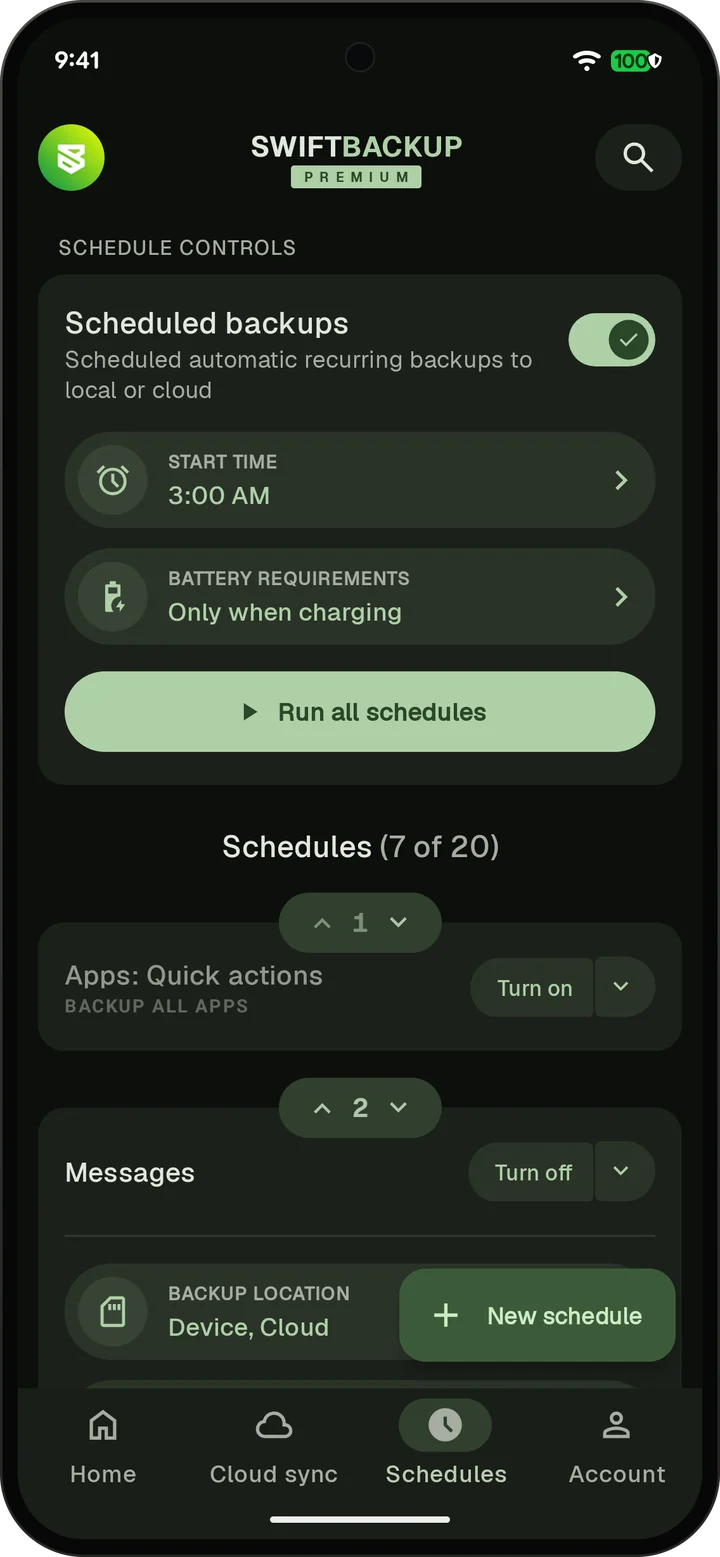
Each schedule backs up to your phone, your cloud or both. Run a schedule now from its menu, even when it is turned off.
The schedule guide sets up your first schedule step by step.
What a schedule can back up
- Apps: All apps, apps not backed up yet or apps with a newer version installed
- Apps with a label
- Apps in a custom config
- Messages and call logs
- Wi-Fi networks and wallpapers
- Folders
Wi-Fi schedules need root, or Shizuku on Android 11 and later.
What schedules need from Android
Alarms and reminders: On Android 12 and later, schedules need this permission to start on time. With root or Shizuku, Swift Backup turns it on for you.
Encrypted RCS chats on Android 17 and later: A schedule can't ask to become your SMS app. Without root or Shizuku, Swift Backup skips the scheduled messages backup and reminds you to back up by hand. With root or Shizuku, scheduled backups include these chats. The messages page has the details.
App labels
Labels come with Premium. Give your apps labels to filter the app list, back up or restore a group at once and use the group in schedules and configs.
Custom configs
A config gives each label its own backup and restore settings. For example, skip app data for apps labeled NO DATA, or keep apps labeled CLOUD ONLY in the cloud only.
Configs need Premium and root or Shizuku. Run a config by hand, add it to a schedule or pin it to the Home screen. The configs guide shows each step.
Run schedules from automation apps
With root, a shell command starts your schedules. Use it in a terminal app or in an automation app such as Tasker or MacroDroid. It runs every schedule that is turned on, or only the schedules you name by their ID.
Copy a schedule's ID from its menu. The FAQ has the exact commands.