 Swift Backup

Back up your messages
Open Messages
On the Home screen, tap Messages. Allow the SMS permissions when Swift Backup asks.
Tap Create backup
Swift Backup loads your conversations and selects all of them. Clear any you want to leave out.
Tap Backup options
Under Select backup locations, pick Device, Cloud or both.
Tap Backup
The new backup shows up under Device backups or Cloud backups on the Messages screen.
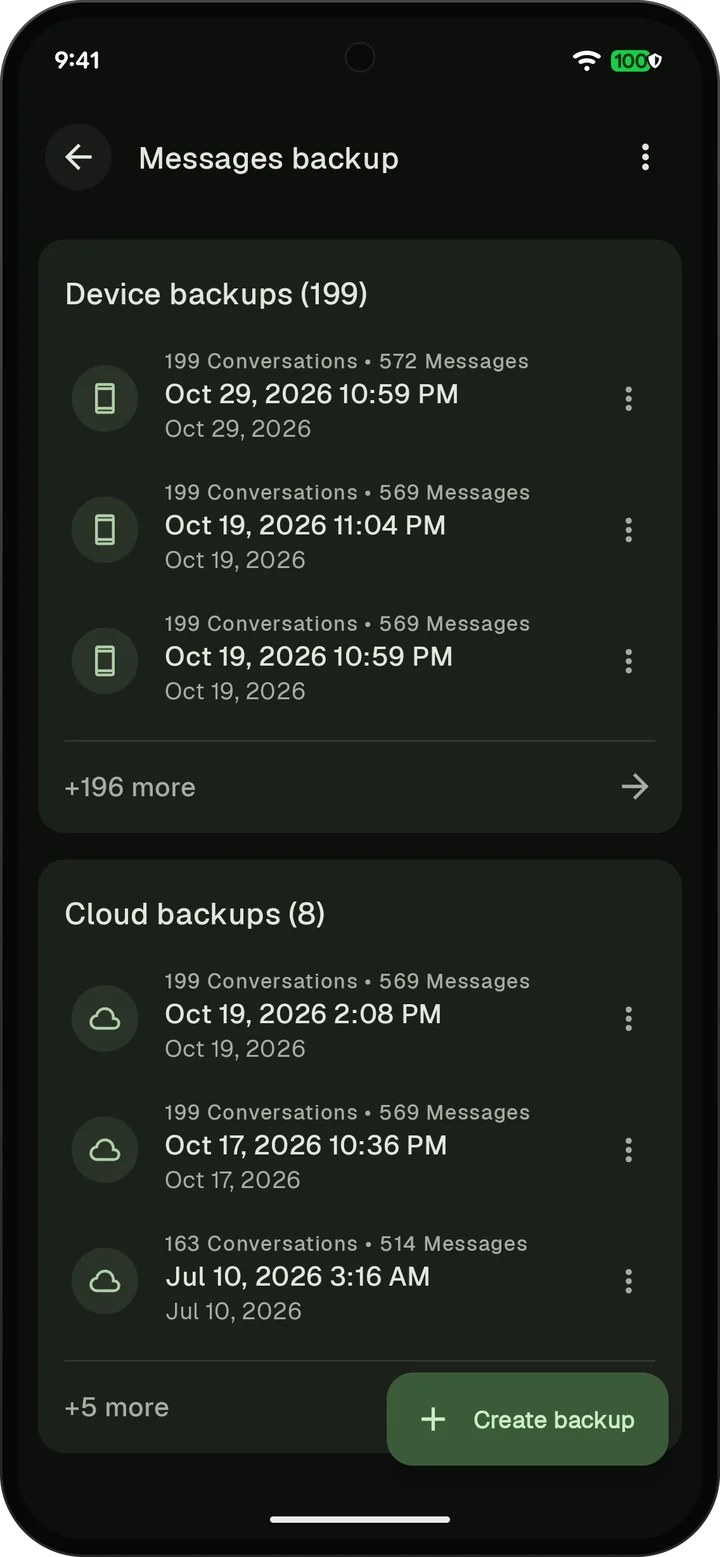
MMS messages are included by default. You can turn them off in Messages backup settings.
Encrypted RCS chats on Android 17 and later
On Android 17 and later, only your default SMS app can read encrypted RCS chats. To include them, Swift Backup becomes your default SMS app while it loads your messages.
Tap Continue
On Android 17 and later, a sheet called Back up encrypted RCS chats opens after you tap Create backup. Tap Continue. To back up without these chats, tap Skip encrypted chats.
Make Swift Backup your SMS app
Android asks to change your default SMS app. Confirm it, and Swift Backup loads your messages.
Switch back
Tap Open settings, then SMS app, and choose your usual messaging app. Then come back to Swift Backup.
Finish the backup
Backup options open. Pick where to save and tap Backup.
With root or Shizuku, Swift Backup reads these chats directly and skips the switch. Scheduled backups without root or Shizuku can't include them. They skip messages and notify you, and Back up now in the notification starts a full backup.
To leave these chats out on Android 17 and later without being asked, turn off Back up encrypted RCS chats in Messages backup settings.
Why some chats can go missing is explained in Common issues.
Back up your call logs
Open Call Logs
On the Home screen, tap Call Logs. Allow the call log permission when Swift Backup asks.
Tap Create backup
Your call history loads. Tap Backup options.
Pick a location and tap Backup
Under Select backup locations, pick Device, Cloud or both, then tap Backup.
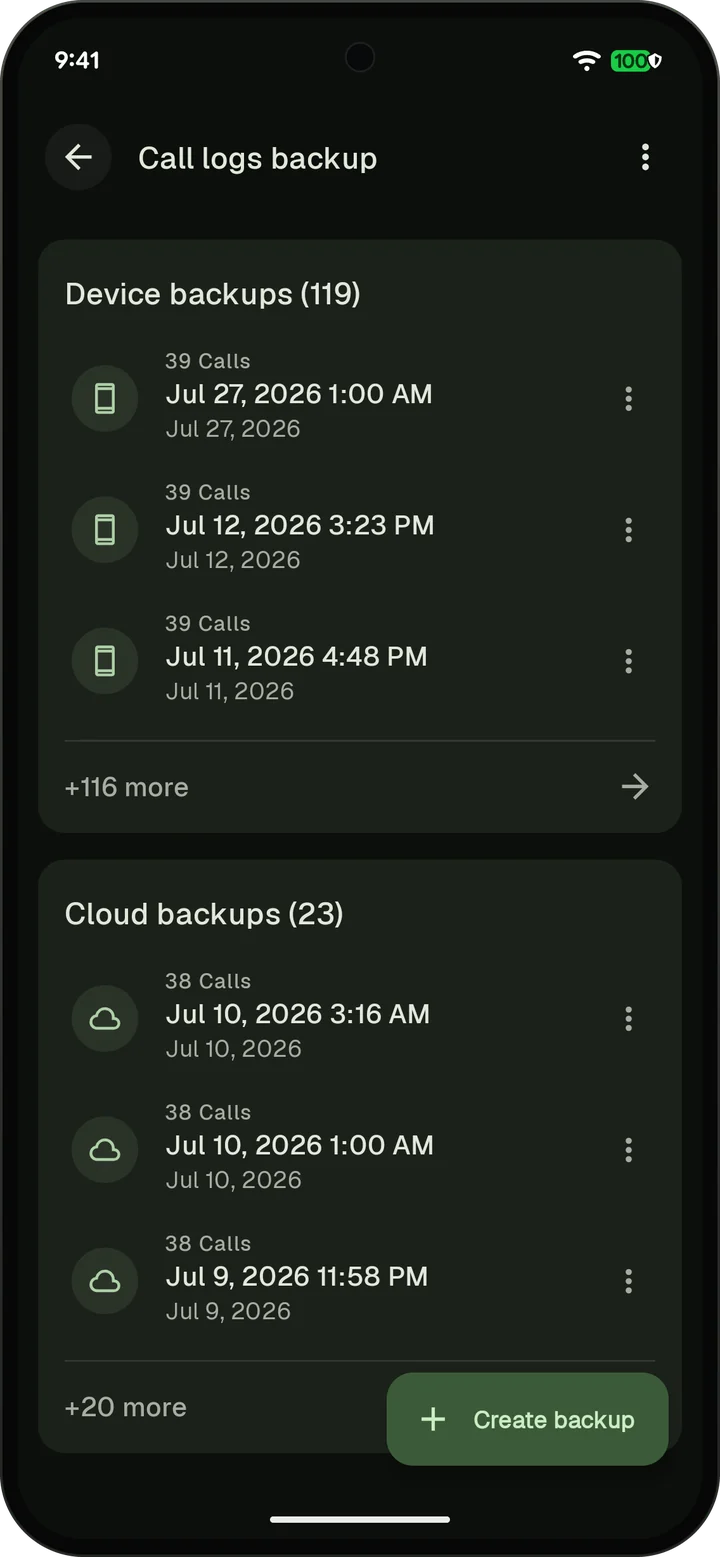
Where backups go and how many to keep
- Device: Backups stay in the SwiftBackup folder on your phone, SD card or USB drive.
- Cloud: Message and call log backups go to the cloud free with a Google account. Connect a cloud in Cloud sync first.
- How many to keep: On the Messages screen, open the menu and tap Messages backup settings. Set Maximum number of backups to keep. Call Logs has the same option in Call logs backup settings.
Messages and call logs are encrypted with AEGIS-256 before they are saved or uploaded. Keys are derived with Argon2id.
Restore messages and call logs
Pick a backup
On the Messages screen, tap a backup under Device backups or Cloud backups.
Tap Restore
The Restore messages screen lists the conversations in the backup. Tap Restore.
Make Swift Backup your SMS app
Swift Backup needs to be the default SMS app to restore messages. Confirm when Android asks.
Switch back to your messaging app
When the restore ends, tap Open settings, then SMS app, and choose your usual messaging app so you don't miss any texts.
Call logs restore the same way from the Call Logs screen. Your SMS app stays as it is.
If restored messages don't show up in Google Messages, see Common issues.