 Swift Backup

The short answer
Titanium Backup's last update, version 8.4.0.2, came out on 24 November 2019. Its Google Play description listed Android 1.5 to 10+. When we checked on 14 November 2026, its Google Play page no longer loaded.
Swift Backup is maintained. It works on Android 8.0 and later and is ready for Android 17. It backs up APKs, messages and more without root, and app data with root.
We make Swift Backup, so read this with that in mind. Every fact about Titanium Backup on this page comes from the sources at the end, read on 14 November 2026.
Side by side
| Swift Backup | Titanium Backup | |
|---|---|---|
| What it backs up | Apps with split APKs, app data, messages, call logs, Wi-Fi networks, wallpapers and folders | User and system apps with their data. The PRO key adds XML backups of messages, call logs, bookmarks and Wi-Fi networks. |
| Root needed | App data needs root. Batch restores need root or Shizuku. | Yes |
| Where backups go | Your phone, an SD card, a USB drive, 10 cloud drives, S3, WebDAV, SMB, SFTP and FTP | Storage you choose on the phone. The PRO key adds sync to Dropbox, Box and Google Drive. |
| Encryption | App data, messages, call logs and folders use AEGIS-256. Wi-Fi backups are encrypted too. APKs, expansion files and wallpapers are not. | The PRO key adds encryption. The passphrase is needed only to restore. |
| Cost | Local backups are free. Premium is a one-time Lifetime purchase or a yearly subscription. | Free, with a paid PRO key |
| Status | Maintained. Current version: 5.1.1. Works on Android 8.0 and later. | Last update 8.4.0.2 on 24 November 2019. Its Google Play page no longer loads. |
What's different today
- Root is optional. Swift Backup backs up APKs, messages, call logs, wallpapers and folders without root. Titanium Backup needs root.
- Shizuku works too. Without root, Shizuku lets Swift Backup restore apps in batches and restore app permissions.
- Newer Android. Swift Backup is ready for Android 17. Message backups include encrypted RCS chats on Android 17 and later.
- More places for backups. Save to your phone, an SD card, a USB drive, cloud drives or your own server. Cloud backups of apps and folders need Premium.
What each app part needs is in the FAQ.
When Titanium Backup is the better pick
- Your phone runs Android 7 or older. Swift Backup needs Android 8.0 or later. Titanium Backup's description listed Android 1.5 and up.
- You need to restore old Titanium backups. Swift Backup can't open them. Restore them with Titanium Backup on a phone it supports.
- You rely on its custom ROM tools. The PRO key can create a flashable update.zip of your apps and data, and restore apps from TWRP backups.
Moving from Titanium Backup to Swift Backup
Restore what you still need
If you have Titanium backups you still need, restore those apps with Titanium Backup first.
Install Swift Backup
Get it from Google Play. On a rooted phone, allow root access so app data is included.
Choose where backups go
Keep them on your phone, an SD card or a USB drive, or upload them to your cloud. Cloud backups of apps need Premium.
Make a fresh backup
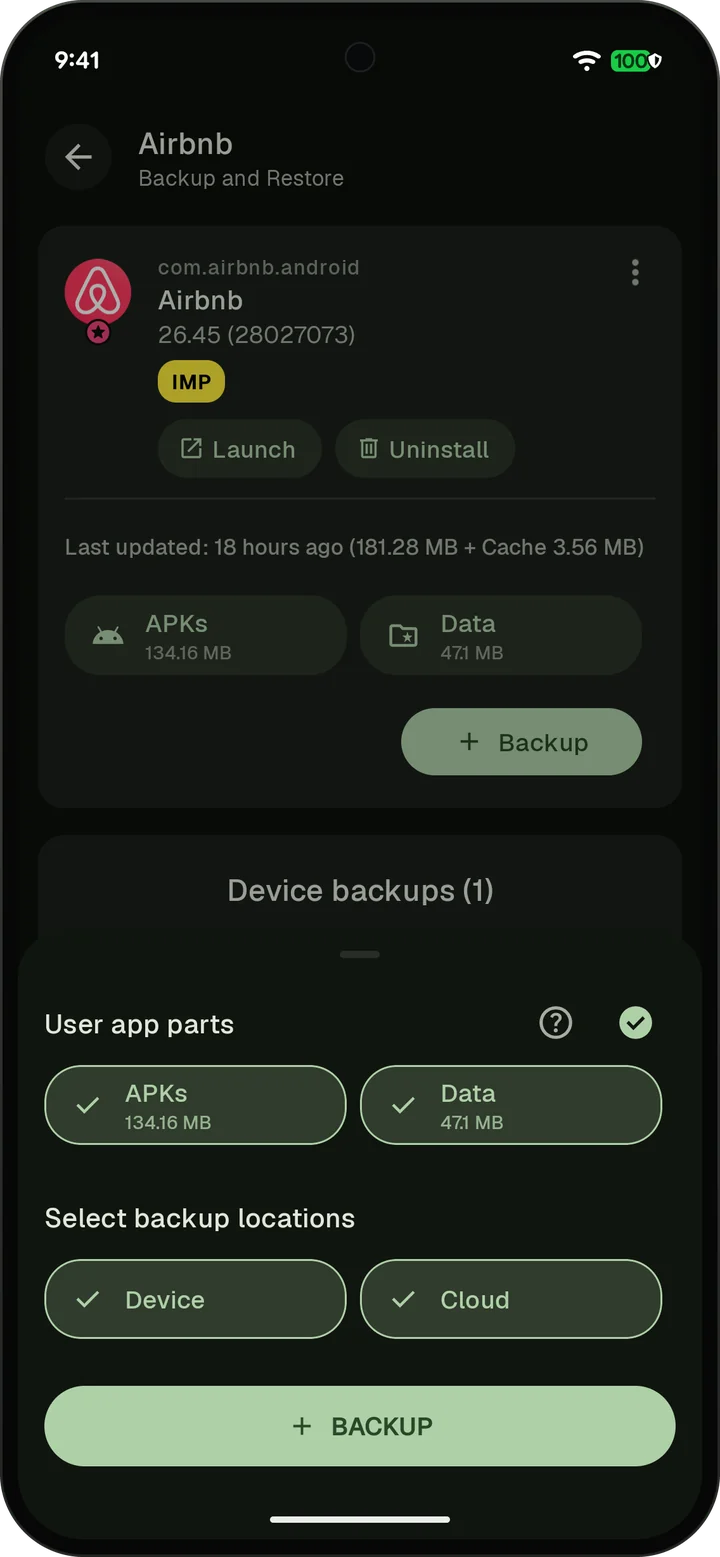
Back up your apps with their data. Then restore one app to check that it works before you need it.
If you're also switching phones, follow Move to a new phone.
Sources
- Titanium Track, Titanium Backup page and feature listRead 14 November 2026
- Titanium Track, Titanium Backup changelogRead 14 November 2026
- Titanium Backup on Google Play, archived copy from 22 July 2026Read 14 November 2026
- Titanium Backup on Google Play (page not found)Read 14 November 2026