 Swift Backup

On your phone, an SD card or a USB drive
Backups go to the SwiftBackup folder on your phone's internal storage. Switch it to an SD card or a USB drive from the Home screen. Local backups need no account or internet.
On some older Android versions, SD cards and USB drives need root. The FAQ has the details.
Cloud drives
Swift Backup works with 10 cloud drives: Google Drive, OneDrive, Dropbox, MEGA, Filen, Drime, Box, pCloud, Yandex Disk and Cloud Mail.Ru. Cloud Mail.Ru needs a paid Mail.Ru plan.
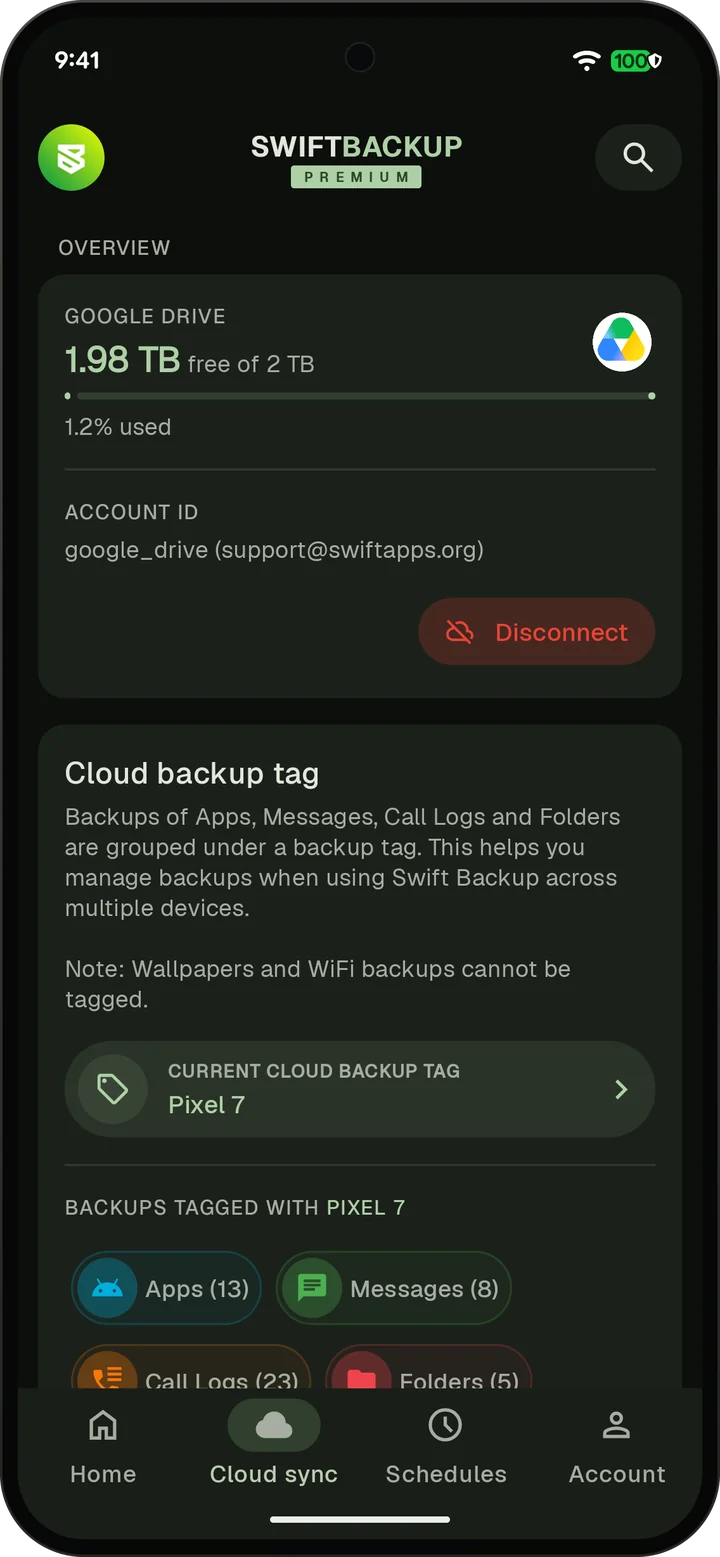
Google Drive uses the Google account you sign in to Swift Backup with. To use another Drive account, sign in with that account, as the FAQ explains.
Your own server or NAS
Back up to a NAS, a home server or object storage. Ready-made setups fill in the details for popular services.
| Type | What it covers |
|---|---|
| WebDAV | Any WebDAV server. Setups for Nextcloud, ownCloud, Synology, WD My Cloud, Koofr, Seafile and HiDrive. |
| S3-compatible | Any S3-compatible storage. Setups for Amazon S3, Cloudflare R2, MEGA S4, Backblaze B2, DigitalOcean Spaces, Wasabi, Hetzner, OVHcloud, Scaleway, IDrive e2 and Storj. |
| SMB | Network shares |
| SFTP | Sign in with a password or a private key file |
| FTP and FTPS | FTP, FTPS (implicit) and FTPES (explicit) |
Swift Backup can scan your local network to find supported servers. On Android 17, allow the Local network permission so it can reach servers at home.
For a Synology NAS over WebDAV, enter an existing folder in the Path field. Common issues has the details.
What is free and what needs Premium
| Backup | On your phone | In the cloud |
|---|---|---|
| Apps | Free | Premium |
| Folders | Free | Premium |
| Messages and call logs | Free | Free with a Google account |
| Wi-Fi networks and wallpapers | Free | Free with a Google account |
Cloud backups need a Google sign-in in Swift Backup, whichever cloud you use.
How cloud backups work
Save each backup to your phone, your cloud or both. To restore from the cloud on a new phone, follow the new phone guide.
Cloud backups of apps, messages, call logs and folders are grouped under a backup tag. The tag is your phone's model name unless you create a new one. Phones of the same model share the tag until you do.
Backups are encrypted on your phone before they are uploaded. App data, messages, call logs and folders use AEGIS-256. APKs, expansion files and wallpapers are not encrypted.
Don't move, rename or delete Swift Backup's files in your cloud's app or website. Swift Backup keeps track of them and can lose access to those backups.
Folder backups
Back up any folder on your phone, SD card or USB drive. Restore it to where it was or to a folder you choose.
Single: One backup that stays up to date. Free.
Incremental: Each backup saves only the files that changed since the last one. Premium.