 Swift Backup

What you can back up without root
Without root, Swift Backup saves these parts of an app:
- APKs: The app itself, with its split APKs and shared libraries
- Media: The app's folder in Android/media
- External data and expansion files: The app's folder in Android/data and the OBB files some games use, on Android 10 and older
App data needs root. These are the app's private files, such as its settings, logins and databases. No app can read another app's private data without root. The FAQ explains why root is needed.
On Android 11 and later, external data and expansion files need root or Shizuku.
Back up your apps
Open Apps
On the Home screen, tap Apps. The list shows your installed apps and the apps you have backups of.
Pick one app or many
For one app, tap it and then tap Backup on its screen.
For many apps, tap Batch actions at the bottom, then Backup. Select the apps and tap Backup options.
Choose the parts
Under User app parts, keep the APK part selected. Parts your phone can't back up are turned off.
Choose where to save
Under Select backup locations, pick Device, Cloud or both. Cloud backups of apps need Premium.
Start the backup
Tap Backup.
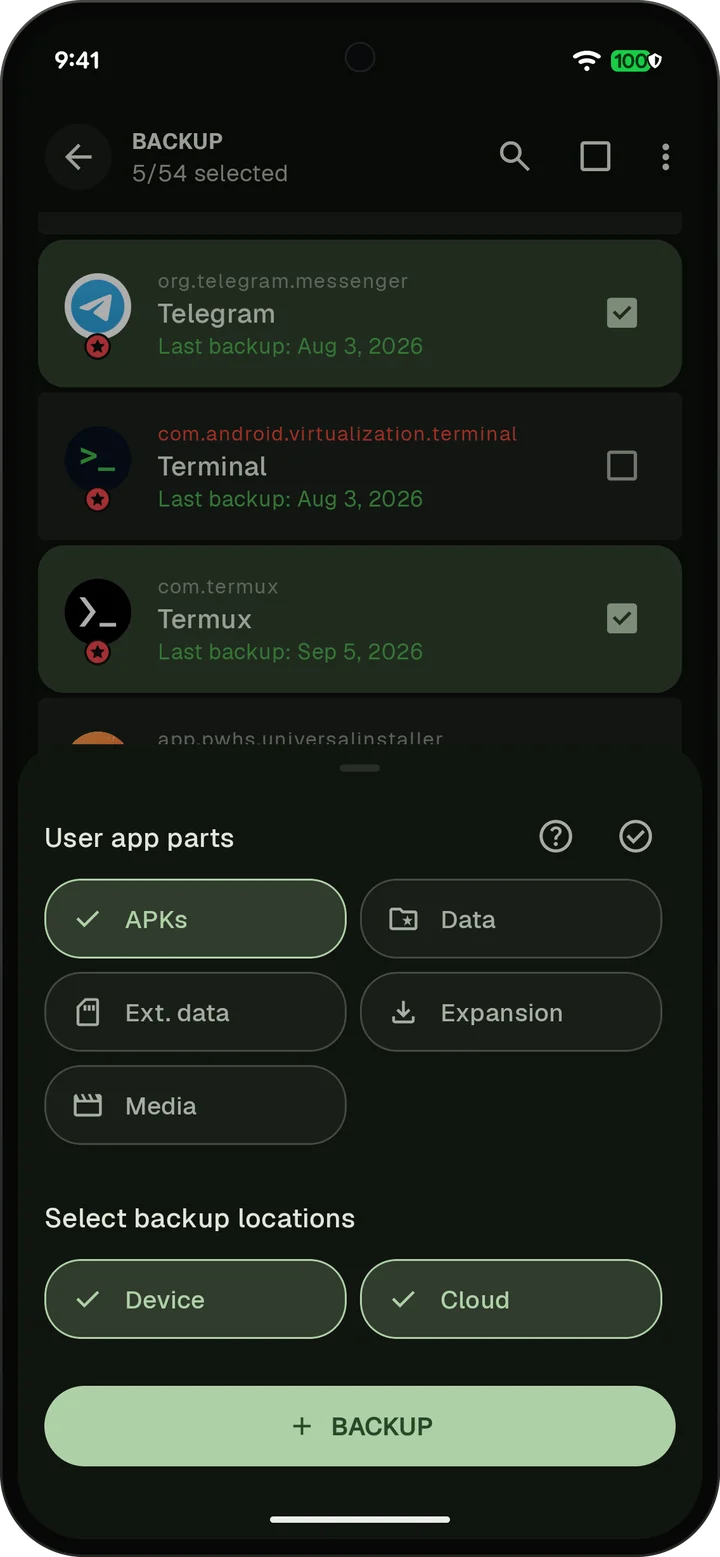
To back up every installed app in one go, tap Backup all apps under Apps quick actions on the Home screen.
Restore apps one at a time
Without root or Shizuku, each app goes back through Android's installer.
Open the app's screen
In Apps, tap the app. Apps that aren't installed show up too when you have a backup of them.
Tap Restore
In the Device backups card, tap Restore. Backups in the cloud are in the Cloud backups card.
Pick the parts
Choose the parts to restore and tap Restore.
Confirm the install
Android's installer opens. Confirm the install. If Android asks, allow Swift Backup to install apps.
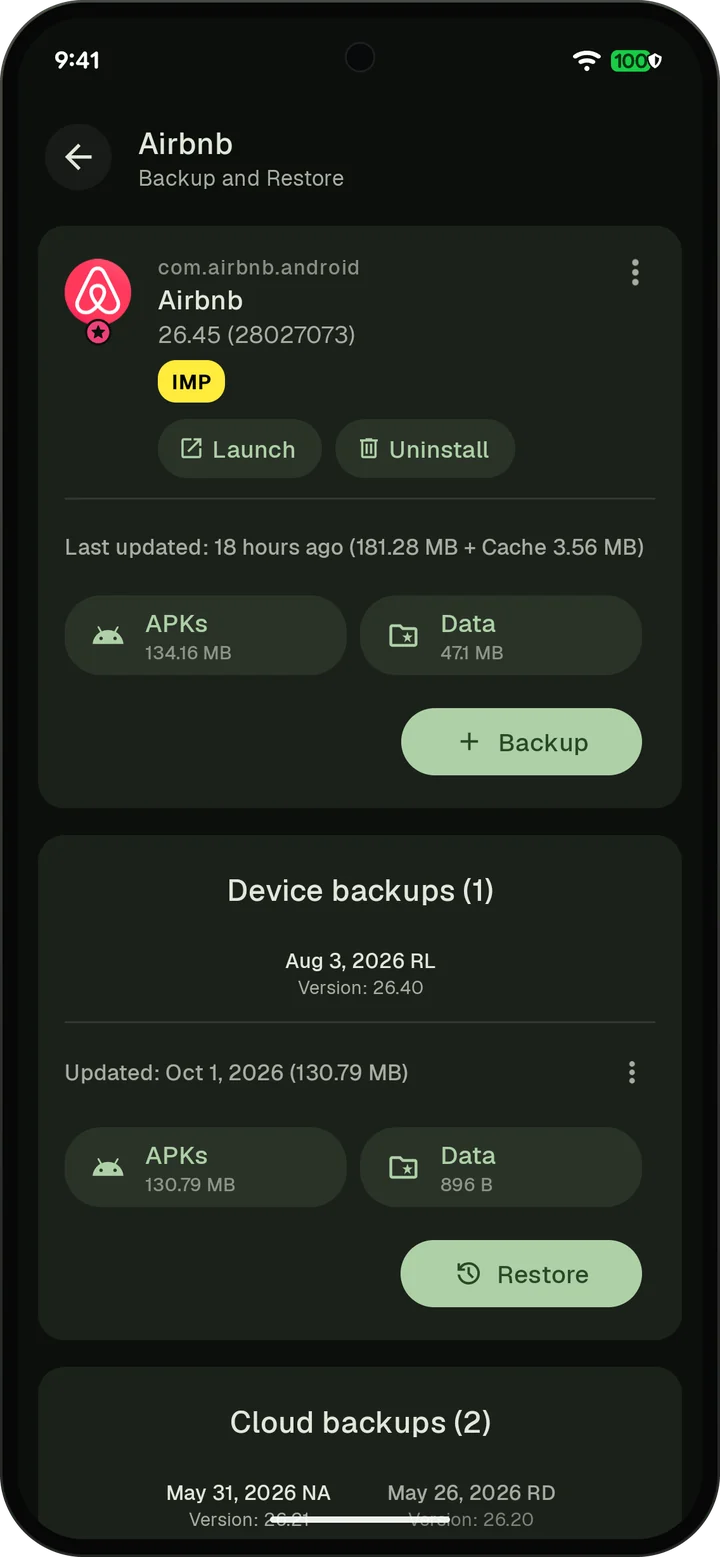
Repeat this for each app. Restoring many apps at once needs root or Shizuku.
Where Shizuku helps
Shizuku gives Swift Backup more access without rooting your phone. With Shizuku running, you can:
- Restore many apps at once with Batch actions, without confirming each install
- Restore app permissions and special data, such as accessibility and battery settings
- Back up and restore external data and expansion files on Android 11 and later
Shizuku can't back up app data. That still needs root. The Shizuku guide shows how to set it up.
Where to keep your backups
- On your phone: Backups go to the SwiftBackup folder on internal storage. Local backups are free.
- SD card or USB drive: Tap the storage at the top of the Home screen to switch. Some older Android versions need root for this.
- In the cloud: Google Drive, a NAS or another cloud service. Cloud backups of apps need Premium.
A factory reset erases internal storage, backups included. Before a reset, copy the SwiftBackup folder to a PC or drive, or back up to the cloud. The FAQ shows how to move local backups.